
Navigate360 Student
EAB GlobalEducation
3.7392.00 Reviews
- Version
- 26.17.8
- Installs
- 500.00K
- Age Rating
- Everyone
Screenshots
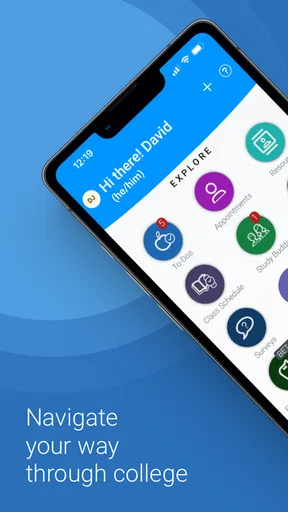
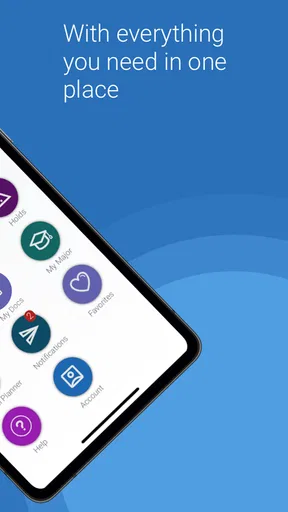
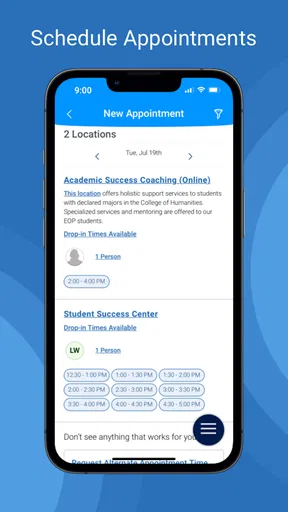
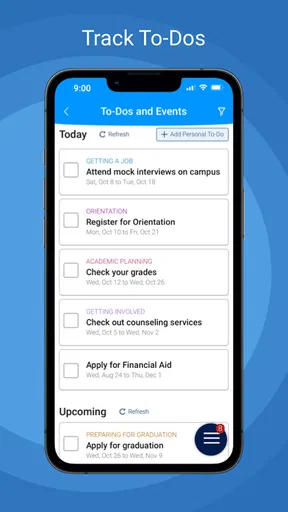
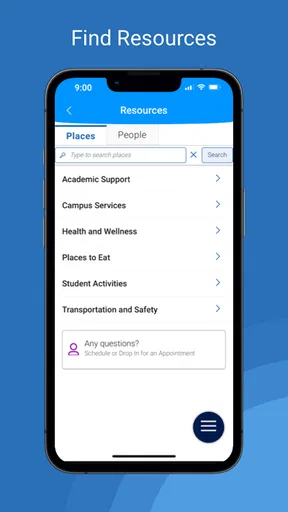
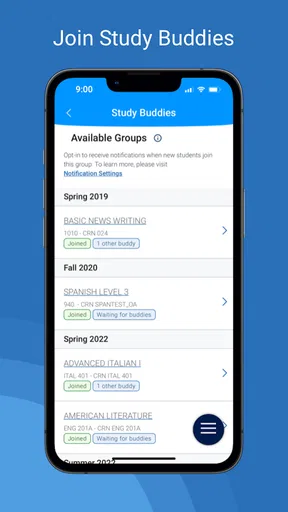
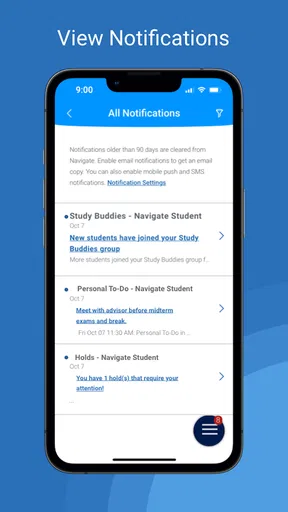
Our Review of Navigate360 Student
 Analysis by Appyee
I found Navigate360 Student most useful as a college-support companion rather than a complete academic system. Its purpose is to help students move through college with more awareness and fewer missed steps, and that makes sense for anyone who wants guidance in one place instead of relying entirely on memory, scattered emails, and separate campus websites. I would recommend it most to students whose institutions actively use the platform, because its value depends heavily on how much relevant campus information and support has been connected to their student experience.
This is a free education app from EAB Global, rated for Everyone. It has been available since December 12, 2014, and its presence on Android is substantial, with over 500 thousand installs. The average score sits at 3.7 from roughly a thousand ratings, which suggests a useful but uneven experience rather than a universally polished one. My overall view is similar: the idea is practical, but the app works best when treated as a navigation tool for college life, not as a replacement for a learning platform, student information system, or personal planning method.
What the app is really good at
I find the app most convincing when it helps turn a broad worry about college into a question I can actually take to an advisor or support office. In this section, I’d focus on that practical role: using guidance to prepare, follow up, and keep a decision from slipping out of view. The key is to treat it as a prompt for purposeful action, rather than another screen to check without a clear reason.
A calmer way to approach college decisions
College often becomes confusing because the information is spread across too many places. One message may explain registration, another may point toward advising, and a third may contain a deadline or campus resource that is easy to overlook. A student can technically have access to everything and still struggle to understand what deserves attention first. Navigate360 Student is aimed at that gap: helping students see college progress as a sequence of choices and actions rather than a pile of unrelated notices.
That difference matters most for students who are new to college routines. I can imagine opening the app before an advising appointment to organize the questions that need answers, then using it again afterward to keep the next steps visible. It is also useful during moments when students tend to lose momentum, such as changing a course plan, considering a different program, or trying to understand where to ask for help. The app does not eliminate those decisions, but it can make them feel less isolated.
The strongest part of the concept is its focus on student success as an ongoing process. Many education apps concentrate narrowly on classes, grades, flashcards, or assignments. This one belongs to a broader kind of student support app, where academic progress and the practical business of staying connected to college are treated as related problems. That wider view is valuable for students who are doing fine in class but still feel uncertain about the rest of college.
A realistic everyday workflow
Consider a student who notices that the next term is approaching but is not sure whether the current course plan still makes sense. Instead of opening a general search engine and jumping between pages, the student can start with the college guidance available through the app, identify what needs clarification, and use that preparation for a conversation with an advisor. Afterward, the app can serve as a reminder of the direction chosen, while the student keeps official academic records and enrollment actions in the institution’s designated systems.
I like this workflow because it gives the app a sensible role. It is not trying to be the only place where a student studies, registers, communicates, and stores every document. It is more useful as a bridge between a student’s questions and the college resources that can answer them. That is a subtle but important distinction. Students often do not need another dashboard; they need help figuring out which next conversation or action will actually move them forward.
A practical tip is to open it before contacting an advisor, not only afterward. Writing down the issue while it is still fresh can prevent a meeting from becoming a vague conversation. A student might compare the current academic direction with personal goals, note confusing requirements, and identify the decision that cannot wait. Used that way, the app supports better preparation rather than encouraging passive browsing.
Where it fits beside familiar alternatives
Compared with a learning-management system, Navigate360 Student serves a different purpose. A course platform is usually the place for class materials, submissions, announcements, and grades. I would not use this app as a substitute for those functions. Compared with a student portal, it is also more guidance-oriented than administrative. The portal remains the likely destination for official records and transactions, while this app is better suited to helping a student understand the route through college.
It also differs from a generic calendar or notes app. A calendar can remind me that I have an appointment, and notes can store questions, but neither one is designed around the college journey. The advantage here is context: the app is connected to the language and support structure of student life. The trade-off is that a generic tool is more flexible. If I want complete control over tasks, custom categories, recurring reminders, or a detailed semester plan, a dedicated planner may still be better.
That comparison explains the mixed overall impression suggested by its rating. Students looking for a focused academic organizer may find the experience broader than expected, while students who need campus-specific guidance may find it far more relevant than a standard productivity app. The right question is not whether it replaces every other tool. The better question is whether it helps a student understand and act on the support already available through college.
The important limitation: usefulness depends on context
The biggest weakness is not the basic idea but the dependence on institutional setup. A student’s experience can vary according to how the college uses the platform and what information is made available through it. That means two people can install the same app and come away with very different impressions. If the relevant campus guidance is limited, outdated, or not connected to the student’s immediate concern, the app may feel like an extra layer rather than a shortcut.
This is why I would not recommend installing it with the expectation that it will independently solve every college problem. It cannot replace a conversation with an advisor when the issue involves a complicated academic decision. It also should not be treated as the final authority for time-sensitive administrative matters. When an action affects enrollment, records, finances, or eligibility, I would verify the details through the college’s official process before relying on an in-app prompt or explanation.
There is another kind of friction: students must be willing to engage with guidance instead of merely checking the app once. A support tool has limited value if it is opened only when something has already gone wrong. I found the concept more convincing when used as part of a routine: review what needs attention, prepare questions, follow up after a conversation, and then return when the next decision appears. Students who want instant answers without any planning may find that process slower than expected.
How to get more from it without making it your only tool
I would begin by deciding what problem I want the app to solve. “Help me succeed in college” is too broad to guide useful behavior. A clearer aim might be preparing for advising, understanding the next academic decision, finding the right support channel, or keeping track of a recommended follow-up. This small change makes the app easier to judge, because I can tell whether it is helping with a real task rather than simply exploring screens.
Second, I would use it before and after important conversations. Before an appointment, gather the questions that are easiest to forget. During or immediately after the meeting, record the action that was agreed upon and the point at which it should be revisited. This approach turns the app into a continuity tool. Without that follow-through, guidance can remain interesting but fail to change what the student actually does.
Third, I would keep a separate source for official confirmation. The app can help me discover the direction to take, but I would still check the college’s authoritative channel for final deadlines, registration status, policy details, and records. This is not a criticism unique to this product; it is a sensible boundary for any guidance app. The more consequential the decision, the more important it is to distinguish advice from an official transaction.
A fourth useful habit is to compare the app’s guidance with the student’s own circumstances. A suggested path may make sense generally but not account for work hours, transfer plans, accessibility needs, family responsibilities, or a change in academic goals. I would treat the app as a prompt for a better discussion, not as an automatic decision-maker. That mindset preserves its convenience without surrendering personal judgment.
Who will appreciate it most
Navigate360 Student is a strong fit for students who feel overwhelmed by the number of college resources available to them. It should also appeal to first-year students who are still learning how advising, planning, and campus support fit together. Students returning after a break may find a guided starting point useful, especially when they need to rebuild a routine rather than simply locate one isolated piece of information.
It can also help students who are comfortable with technology but not naturally organized. Those students may not need another place to type notes; they need a clearer connection between a concern and the next practical step. Used with regular check-ins, the app can reduce the chance that a small question turns into a larger problem because nobody followed up.
I would be more cautious about recommending it to students who already have a highly effective system built around their college portal, calendar, advisor, and personal task manager. If that system already makes responsibilities clear, adding another app may create duplication. It is also not the right first choice for someone searching for study tools, course-specific practice, deep note-taking, or a full academic planner. Those needs call for more specialized alternatives.
Students should also consider whether their college’s use of the platform matches their expectations. The app’s name and purpose may sound broadly applicable, but the actual usefulness comes from the student’s connection to the institution and its support process. I would check that relationship first, then decide whether the app fills a genuine gap. Installing it simply because it is free is not enough reason to keep it.
Compatibility, cost, and the day-to-day experience
The app is free, which removes the most obvious barrier to trying it. Its current version is 26.17.8, and it requires at least OS 12. That operating-system requirement is worth checking before installation, particularly for students using an older phone. A free app that cannot run on the device being used for college is not very helpful, so compatibility should be confirmed early.
The Everyone age rating also fits its role as a general college-support application. That does not mean every student will find every part equally relevant; a new student, a graduating student, and someone returning after time away will naturally approach it with different questions. It simply makes the app broadly suitable from an age-rating perspective, without suggesting that the guidance will be equally valuable in every academic situation.
One point I would keep in mind is the difference between availability and engagement. The installation figure shows that many people have downloaded it, but downloads alone do not guarantee that it will become part of a student’s routine. The average rating of 3.7 reflects a product that has clear usefulness for some people alongside enough friction or variation to prevent a stronger consensus. I would approach it with realistic expectations: try it for a concrete college task, then decide whether it is earning a permanent place on the phone.
My verdict for students deciding today
My recommendation is positive, but specific. Navigate360 Student is worth trying if you want a college-focused guide that can help turn uncertainty into a more manageable next step. I especially like its role before advising conversations and during periods when a student is making choices about academic direction or support. It offers something a generic calendar and a course platform do not: a clearer focus on the broader college journey.
At the same time, I would not present it as a complete solution. Its usefulness is tied to the way the student’s institution supports the experience, and it cannot replace official systems, personal judgment, or direct help for complicated cases. Students who need a rigorous planner or study environment should choose a more specialized tool. Students who want help understanding where to begin may find this one much more worthwhile.
My final take: use it as a guided starting point and a follow-up aid, not as the sole record of important college decisions. If it connects you with the right next action and helps you arrive better prepared for support conversations, it is doing its job. For students who need that kind of structure, the free price makes experimenting easy; for students whose existing system already works, it may be unnecessary.
Verdict
Strengths of Navigate360 Student
- Provides quick access to school safety resources and alerts.
- Location sharing can help families stay informed during emergencies.
- Includes tools for reporting concerns directly to school staff.
- May support anonymous tips, improving access to help.
- Useful companion for schools already using Navigate360 services.
Limitations of Navigate360 Student
- Features depend heavily on school enrollment and administrator setup.
- Frequent alerts may become distracting during busy school days.
- Location and safety features raise privacy concerns for some students.
- The interface and available tools can vary between schools.
- Some functions may require permissions that affect battery life.
Similar Picks in This Category
View All
Duolingo: Language Lessons
Duolingo4.7

Google Classroom
Google LLC2.8

Unacademy: Learn & Crack Exams
Unacademy3.2

Bible App for Kids
Life.Church4.4

Cake - Learn English & Korean
Cake Corp.4.7

Brainly: AI Homework Helper
Brainly4.5
Frequently Asked Questions
What is Navigate360 Student, and who is it designed for?
Navigate360 Student is a school-focused safety and communication app designed for students, families, and educational communities. Depending on how a school has configured the platform, it may provide access to safety alerts, emergency reporting, wellness resources, campus information, and other support tools. Availability can vary by institution, so users should confirm that their school participates before downloading and expecting full access.
How do I sign in to Navigate360 Student?
In most cases, you sign in using credentials supplied or approved by your school, such as a school email address, student ID, or an institution-specific account. Some schools may provide an invitation, access code, or single sign-on option. If your login does not work, the app may not be activated for your school, or your account may need to be enabled by a school administrator rather than created independently.
What safety features are available in Navigate360 Student?
The available safety tools depend on your school’s subscription and configuration, but the app may include emergency communication, incident reporting, safety resources, and notifications from authorized school personnel. It should not be treated as a replacement for emergency services. If there is an immediate danger, contact local emergency services first, then use the app when appropriate and when doing so is safe.
Does Navigate360 Student track my location or collect personal information?
The app may request permissions such as notifications, location, camera, or microphone depending on the features enabled by your school. Certain safety functions may require location access to provide more useful information, while other features may work without it. Before accepting permissions, review the app’s privacy policy and your school’s data practices to understand what information is collected, why it is used, and how long it may be retained.
Is Navigate360 Student free, and will it work on my device?
Students generally do not purchase a separate subscription to use Navigate360 Student; access is usually provided through a participating school or organization. However, having the app installed does not guarantee access to every feature. The application requires a compatible Android or iOS device, an updated operating system, and an internet connection for many functions. Check the relevant app store listing and your school’s instructions for current requirements.
